





CometVPN Chrome Extension: Your Whole Browser on a Home IP
CometVPN now has a Chrome VPN extension, and it puts your whole browser on a real residential IP in one click. Pick a country or a city, connect, and every site you open sees a home connection, not a hosting company.
No app to install, no datacenter IP ranges to get flagged. Just Chrome, on a real home IP.

Laura Valskytė
2 min read
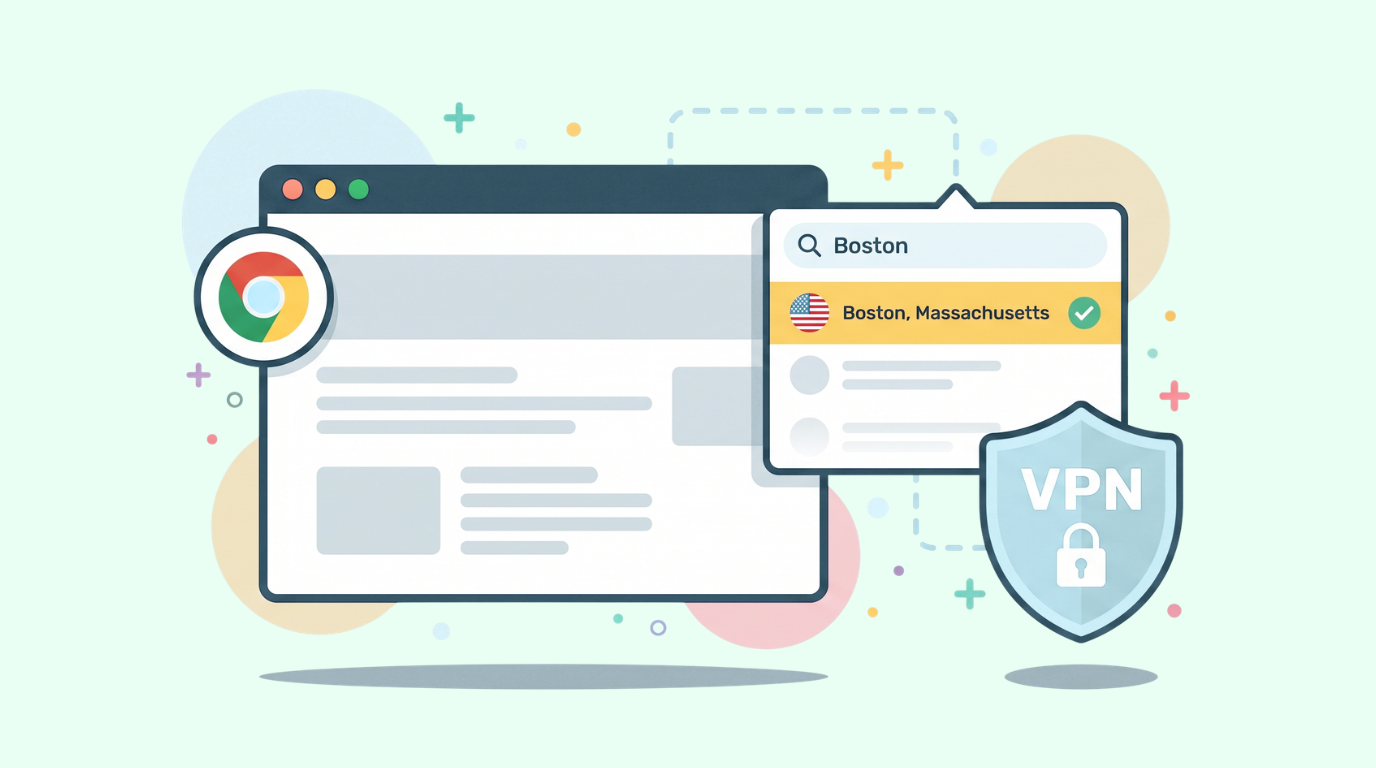
How the CometVPN Chrome extension works
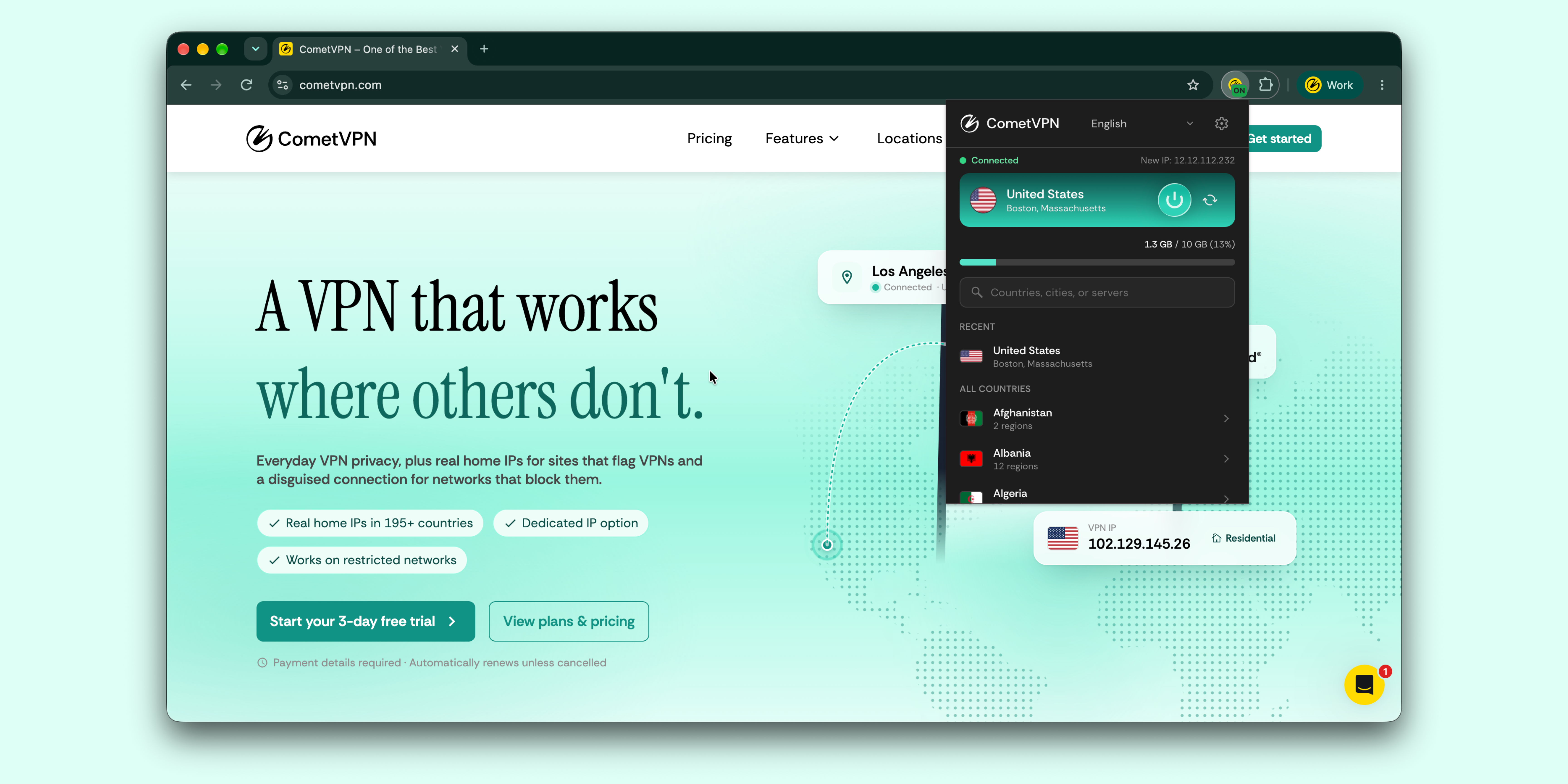
One click routes all of Chrome through the location you choose. There is nothing else to set up and no separate app to run.
You can search by city, too. Type a city name, then pick the exact region and city from the list. In the video, we search for Boston, choose Massachusetts and connect, then switch the browser to Berlin, Germany and check the result on a live IP lookup site.
Real residential IPs from local internet providers
The extension runs on CometVPN's Native Residential IP network. Sites see a local internet provider, like Comcast Cable in Boston or Deutsche Telekom in Berlin, not a datacenter.
That matters because most VPNs route you through datacenter IP ranges, and many websites flag those ranges automatically. It is why regular VPN users run into CAPTCHA loops, "VPN detected" messages and false blocks while simply browsing. A residential IP is assigned by a real internet provider, so it reads as a normal home connection.
Want a fresh IP? Hit the rotate button. It swaps your residential IP in one tap and keeps your chosen city, without disconnecting.
Built-in privacy: WebRTC leak protection and DNS at the exit
- WebRTC leak protection – stops sites from discovering your real IP through WebRTC while you're connected. Heads-up: video and voice calls won't work while it's on.
- Resolve DNS at the exit – domain names are looked up through the connection, not on your own network.
- No browsing logs – CometVPN keeps no record of the pages you visit.
- No analytics, no error reporting – the extension runs neither.
- Memory-only credentials – proxy credentials are cleared when you close the browser.
How to install the CometVPN Chrome extension
- Add CometVPN from the Chrome Web Store.
- Log in with your CometVPN account, or try CometVPN free.
- Pick a country or search for a city.
- Connect and browse.
That's it. Your whole browser, on a real home IP, in under a minute.
Prefer Firefox? The CometVPN Firefox extension gives every tab its own location.
See it in action
Prefer to watch? Here’s the full walkthrough: connect Chrome to a city, switch locations and rotate your IP in one tap.
Frequently Asked Questions
Does the CometVPN Chrome extension use residential IPs?
Yes. It runs on CometVPN's Native Residential IP network, so sites see a local internet provider instead of a datacenter.
Can I connect Chrome to a specific city?
Yes. Search for a city name, then pick the region and city from the list.
Does it route my whole browser?
Yes. One click routes all of Chrome through the location you choose.
Can I change my IP without changing location?
Yes. The rotate button gives you a fresh residential IP in the same city, without disconnecting.
Does the extension protect against WebRTC leaks?
Yes. WebRTC leak protection stops sites from discovering your real IP through WebRTC.
Author
Laura Valskytė
Digital Marketing Specialist at CometVPN
Laura is a digital marketing specialist with a passion for online privacy and cybersecurity. At CometVPN, she focuses on content strategy, SEO, and helping users understand the tools that keep them safe online.
Related articles
2 min read
CometVPN Firefox Extension: A Different VPN Location in Every Tab
CometVPN now has a Firefox VPN extension – and it lets every tab in your browser have its own location. One tab in Berlin, another in Rome, a third in Los Angeles, all on real residential IPs.
No app to juggle, no all-or-nothing connection. Just your browser, doing exactly what you tell it to.

5 min read
How to Change Chrome Proxy Settings: The Ultimate Guide
A proxy server is an easy alternative to a VPN that can perform most of the functions of the latter. It’s a server that stands between your device and the destination server, taking your connection requests and forwarding them in your name.
Destination servers in almost all cases see the proxy server as the originator of the request. As such, proxies are widely used in various, mostly business-related applications whenever privacy, security, location changing, and several other factors are at play.

Guoda Šulcaitė