









CometVPN Firefox Extension: A Different VPN Location in Every Tab
CometVPN now has a Firefox VPN extension – and it lets every tab in your browser have its own location. One tab in Berlin, another in Rome, a third in Los Angeles, all on real residential IPs.
No app to juggle, no all-or-nothing connection. Just your browser, doing exactly what you tell it to.
2 min read
How per-tab VPN locations work in Firefox
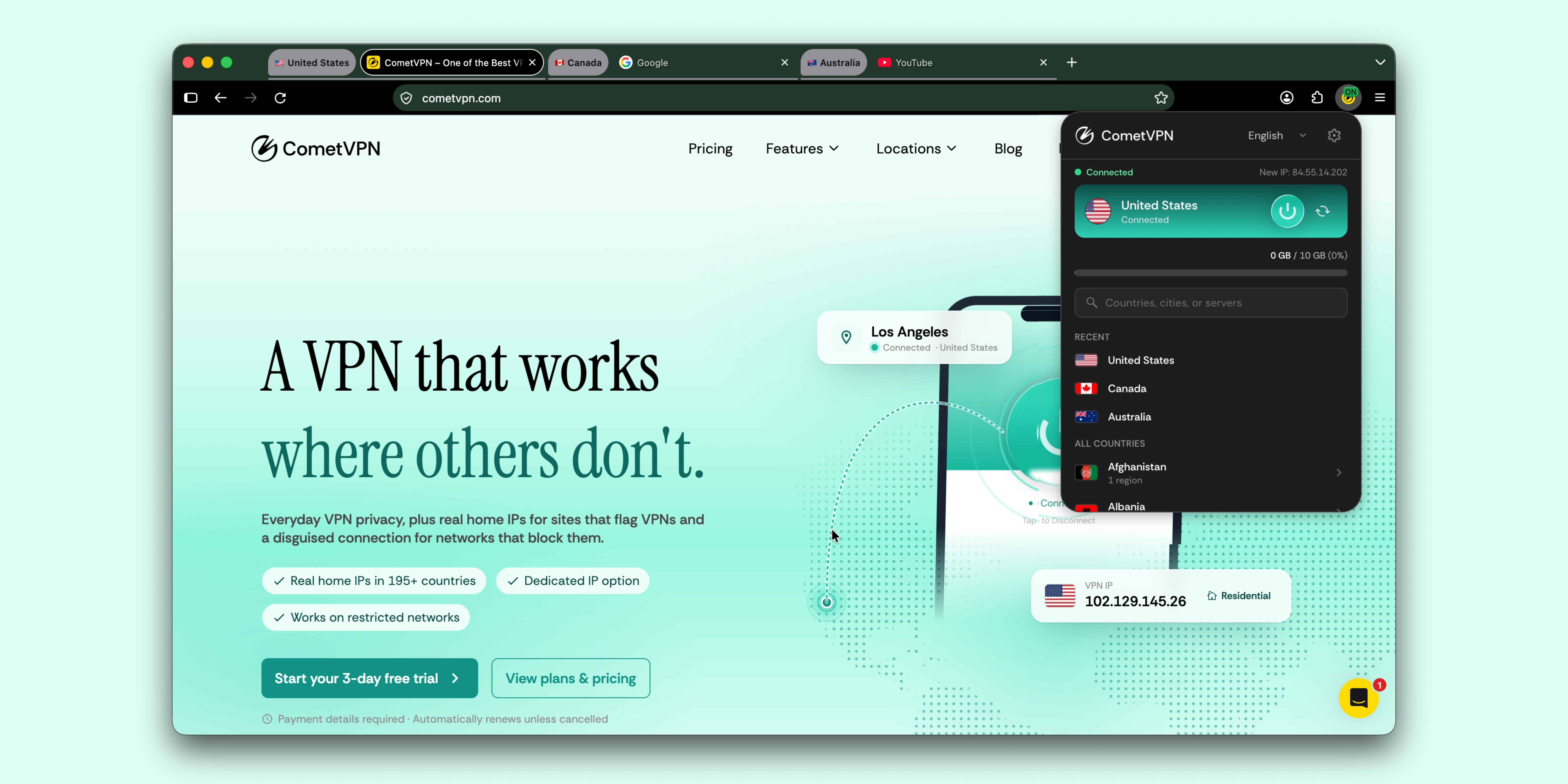
Normally, a VPN routes your whole browser through one location. With per-tab locations switched on, each tab connects through its own – a different IP per tab, all running at the same time.
Each tab is fully independent – its own location, its own residential IP and its own local internet provider. To keep track, the tab bar shows a flag and city for every tab, and opening the extension shows the location of the tab you're on.
It's the easiest way to see what a site looks like from different countries – side by side, without switching your whole browser back and forth.
How to set up per-tab VPN locations in Firefox
- Install the extension. Add CometVPN from Firefox Browser Add-ons and log in with your CometVPN account.
- Turn on per-tab locations in the extension settings.
- Pick a city for your tab. Search or scroll the list, then tap to connect.
- Repeat in other tabs. New tabs stay on your own network until you choose a location. The tab bar shows each tab's flag and city.
That's it. Your browser, your rules – one tab at a time.
Real residential IPs from local internet providers
The extension runs on CometVPN's Native Residential VPN. You don't pick the provider – it assigns a real local internet provider automatically, so each tab reads as a normal home connection, not a hosting company.
Translation: fewer blocks from sites that flag VPNs, and a browsing experience that looks like, well, a regular person browsing.
Each tab's IP stays the same for as long as possible, so it's stable through your session. Want a fresh one? Hit rotate – it changes the IP for that tab only. Same location, and your other tabs don't move.
Built-in privacy: WebRTC leak protection and DNS at the exit
- WebRTC leak protection – stops sites from discovering your real IP through WebRTC while you're connected. Heads-up: video and voice calls won't work while it's on.
- Resolve DNS at the exit – domain names are looked up through the connection, not on your own network.
- No browsing logs – CometVPN keeps no record of the pages you visit.
- No analytics, no error reporting – the extension runs neither.
- Memory-only credentials – proxy credentials are cleared when you close the browser.
See it in action
Prefer to watch? Here's the full walkthrough – multiple tabs, multiple countries, one browser.
Frequently Asked Questions
Can I use a different VPN location in each Firefox tab?
Yes. Turn on per-tab locations in the extension settings, and each tab gets its own location.
Do new tabs connect to the VPN automatically?
No. New tabs stay on your own network until you choose a location for them.
Does the CometVPN Firefox extension use residential IPs?
Yes. It runs on Native Residential VPN and assigns a real local internet provider automatically.
Does the extension protect against WebRTC leaks?
Yes. WebRTC leak protection stops sites from discovering your real IP while you're connected. Video and voice calls won't work while it's on.
Related articles

4 min read
Ethernet vs Wi-Fi: Which One is Better?
Ethernet and Wi-Fi are the two main ways to connect your computer to the internet. While Wi-Fi has received significantly more attention in recent years, especially among consumers, due to its simplicity and flexibility, ethernet is still widely used in various other applications.
Even if Wi-Fi is significantly more popular, it isn’t strictly better. Both methods have their benefits and drawbacks. Wi-Fi’s popularity comes from its ease-of-use and flexibility, but an ethernet connection can be much more useful in certain scenarios.

Adomas Šulcas
5 min read
How to Change Chrome Proxy Settings: The Ultimate Guide
A proxy server is an easy alternative to a VPN that can perform most of the functions of the latter. It’s a server that stands between your device and the destination server, taking your connection requests and forwarding them in your name.
Destination servers in almost all cases see the proxy server as the originator of the request. As such, proxies are widely used in various, mostly business-related applications whenever privacy, security, location changing, and several other factors are at play.

Guoda Šulcaitė