









How to Use FoxyProxy with CometVPN Proxies
FoxyProxy is one of the most popular proxy-management extensions for Chrome and Firefox, letting you switch proxies with a click instead of digging through browser settings. Paired with CometVPN proxies, it makes fast switching and (in the Standard version) rule-based routing painless. Below: which version to pick, and exactly how to set it up.

Laura Valskytė
2 min read

What Is FoxyProxy
FoxyProxy is a browser extension for Chrome and Firefox that manages your proxy connections – adding, editing, and switching between proxy profiles without touching your browser's native network settings.
FoxyProxy Standard vs Basic
| FoxyProxy Basic | FoxyProxy Standard | |
|---|---|---|
| Core function | Single-proxy on/off switching | Same, plus rule-based switching |
| URL patterns (auto-switch by site) | ✗ | ✓ |
| Multiple proxy profiles | ✓ | ✓ |
| Best for | Anyone who just wants one proxy on or off | Anyone routing different sites through different proxies |
The two versions share nearly all core functionality. The dividing line is Patterns in Standard: it lets you whitelist or blacklist specific domains so the proxy only applies where you want it – useful if you only need CometVPN's proxy active on certain sites. If that's not a need, Basic covers the on/off switching just as well.
Step-by-Step Installation and Setup
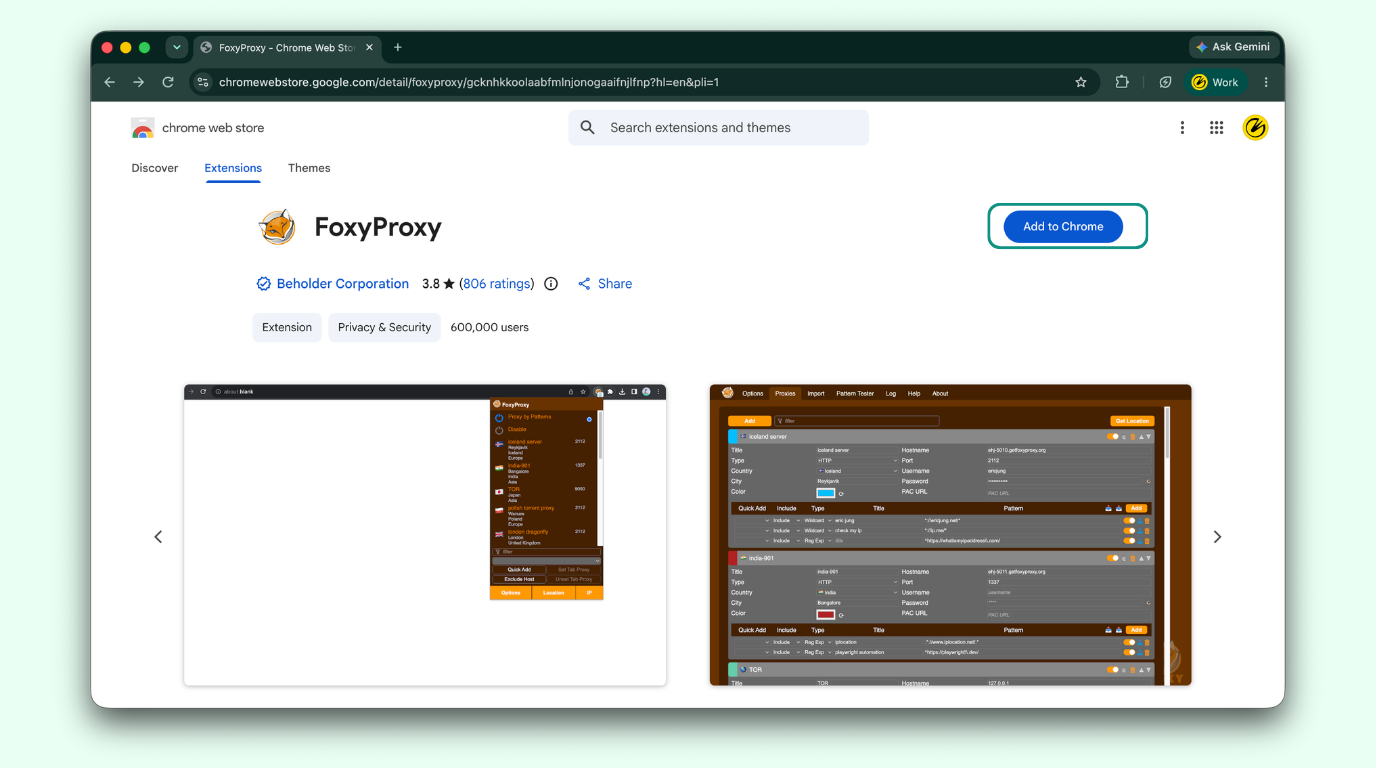
1. Install FoxyProxy (Chrome or Firefox)
- Chrome: Add FoxyProxy from the Chrome Web Store.
- Firefox: Add FoxyProxy from Firefox Add-ons.
2. Find your CometVPN proxy credentials
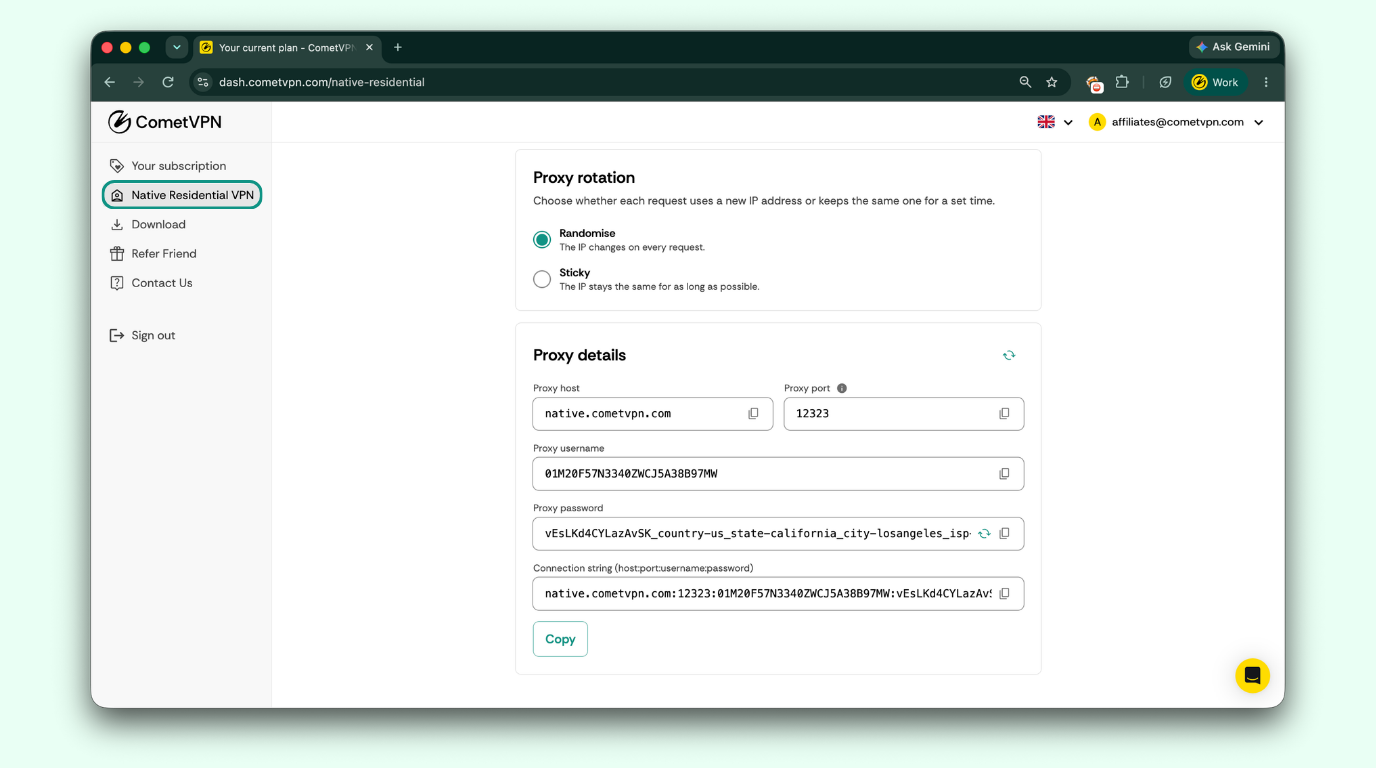
In your CometVPN dashboard, go to Native Residential VPN. If you want, use the proxy filters (Country, State, City, ISP) to narrow down where your proxy exits.
Above your credentials, you'll see a Proxy rotation setting: choose Randomise (new IP per request) or Sticky (same IP for a set time).
Then scroll to Proxy details, where you'll find:
- Proxy host
- Proxy port
- Proxy username
- Proxy password
- A ready-made connection string (host:port:username:password) you can copy in one go
3. Add a new proxy in FoxyProxy's Options
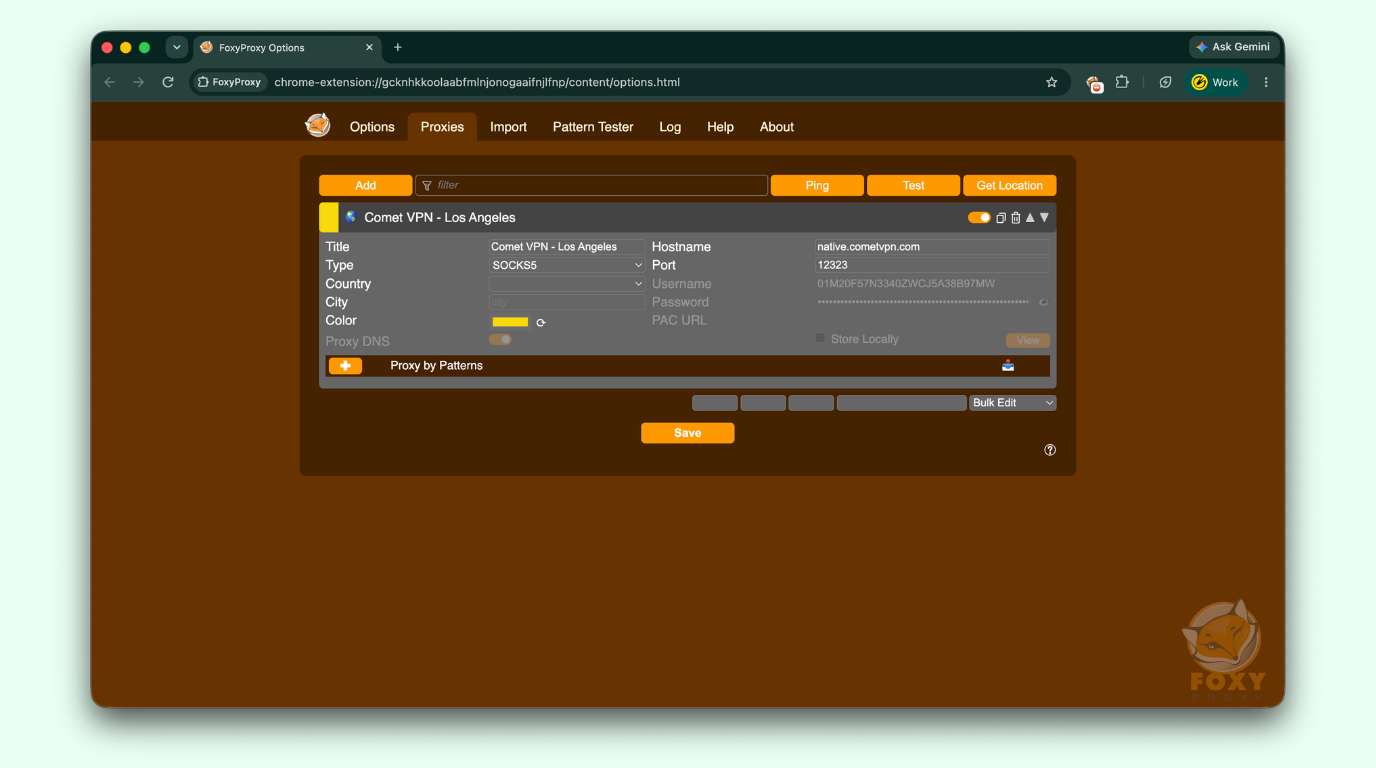
Click the FoxyProxy icon → Proxies tab → Add, then fill in:
- Title (any name you'll recognize later)
- Type (HTTP, HTTPS, SOCKS4, or SOCKS5)
- Hostname
- Port
- Username and Password (your CometVPN proxy credentials)
4. Turn the proxy on
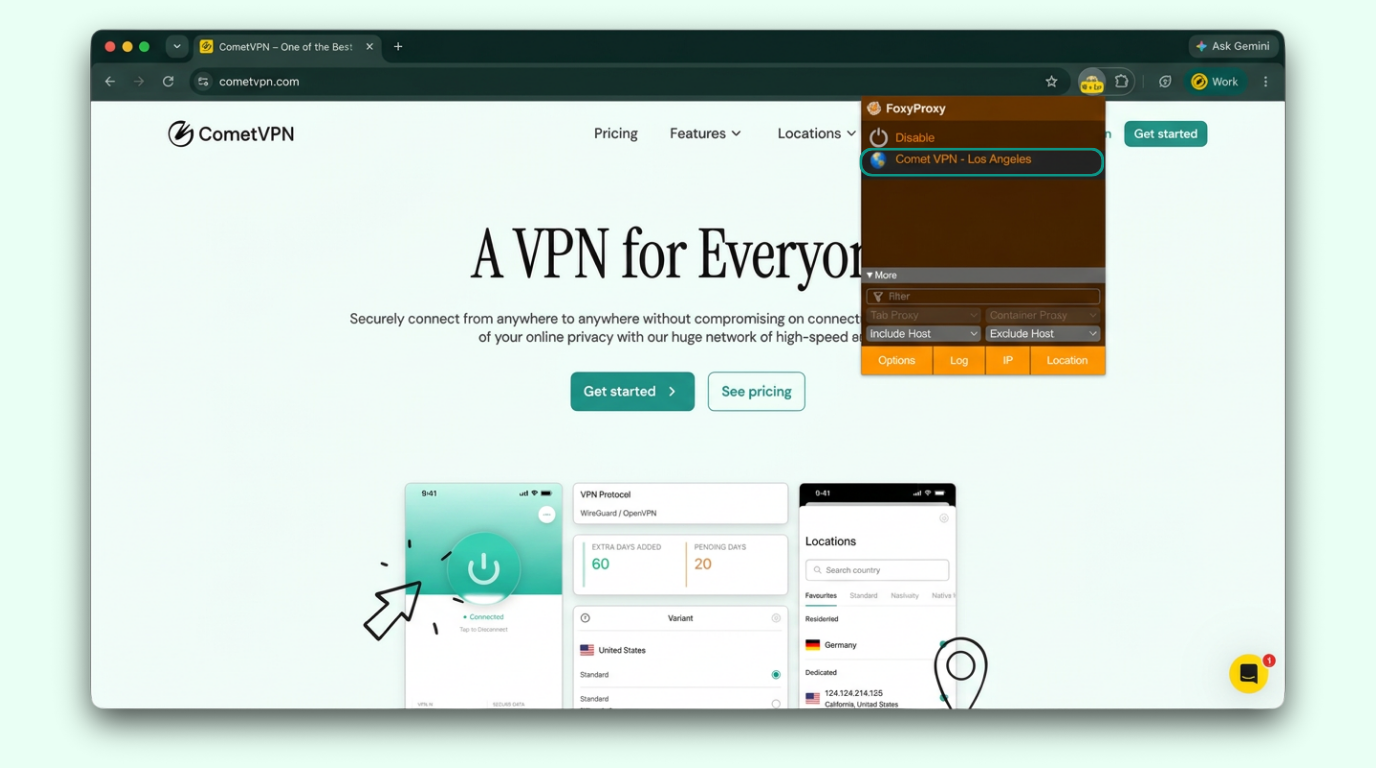
Click the FoxyProxy icon in your toolbar and select the profile you just created to activate it.
How to Verify It's Working
Visit a site like whatismyip.com – it should show your CometVPN proxy's IP address, not your own.
Common issues:
- Incorrect username or password — Recopy your credentials from the CometVPN dashboard rather than retyping them (avoids typos)
- Proxy profile created but not selected/activated — Click the FoxyProxy icon and confirm the correct profile is checked/active, not just saved
- Firewall blocking the proxy port — Temporarily disable your firewall or add an exception for the port shown in your CometVPN dashboard, then retest
Video Guide: How to Set Up FoxyProxy with CometVPN
Ready to put this to work?
Grab your CometVPN proxy credentials from your dashboard and get switching.
Frequently Asked Questions
What is FoxyProxy, and is it free?
FoxyProxy is a browser extension for managing and switching proxies in Chrome and Firefox. Both the Basic and Standard versions are free to install.
What's the difference between FoxyProxy Standard and Basic?
Standard adds URL Patterns for rule-based, per-site proxy switching. Basic is a straightforward single-proxy on/off toggle. Otherwise the two are functionally very similar.
Does FoxyProxy support SOCKS5 with authentication?
Yes, current versions support username/password authentication for SOCKS5 proxies.
How do I add FoxyProxy to Chrome or Firefox?
Install it from the Chrome Web Store or Firefox Add-ons, then open its Options to add your proxy details.
How do I find a CometVPN proxy in Germany (or another country) and use it with FoxyProxy?
Go to: https://dash.cometvpn.com/native-residential -> pick a location, copy the credentials, and add them as a new profile in FoxyProxy the same way.
Author
Laura Valskytė
Digital Marketing Specialist at CometVPN
Laura is a digital marketing specialist with a passion for online privacy and cybersecurity. At CometVPN, she focuses on content strategy, SEO, and helping users understand the tools that keep them safe online.
Related articles