








BP Proxy Switcher Setup: Installing and Configuring It with CometVPN
BP Proxy Switcher is a Chrome extension for switching between proxy servers without digging into Chrome's own network settings. Paired with a CometVPN proxy, it gives you a quick on/off toggle and a saved profile you can reuse any time – no re-entering credentials each session. Below: how to install it and get it connected to CometVPN.

Laura Valskytė
2 min read

What Is BP Proxy Switcher
BP Proxy Switcher is a browser extension for Chrome (and other Chromium-based browsers) that manages proxy connections from the toolbar – add a proxy once, then switch it on or off, or swap between saved proxies, without touching Chrome's system-level proxy settings.
A quick note: a proxy and a VPN aren't the same thing – a proxy reroutes your browser traffic through another server, while a VPN encrypts and reroutes traffic at the device level. BP Proxy Switcher manages proxies specifically, not a VPN connection.
Compared to setting a proxy manually through Chrome/OS settings, BP Proxy Switcher adds: saved proxy profiles you can switch between with one click from the Proxy tab, a built-in proxy tester (checks a proxy actually loads a page, not just connects), and optional proxy rotation.
Step-by-Step Installation and Setup
1. Install from the Chrome Web Store
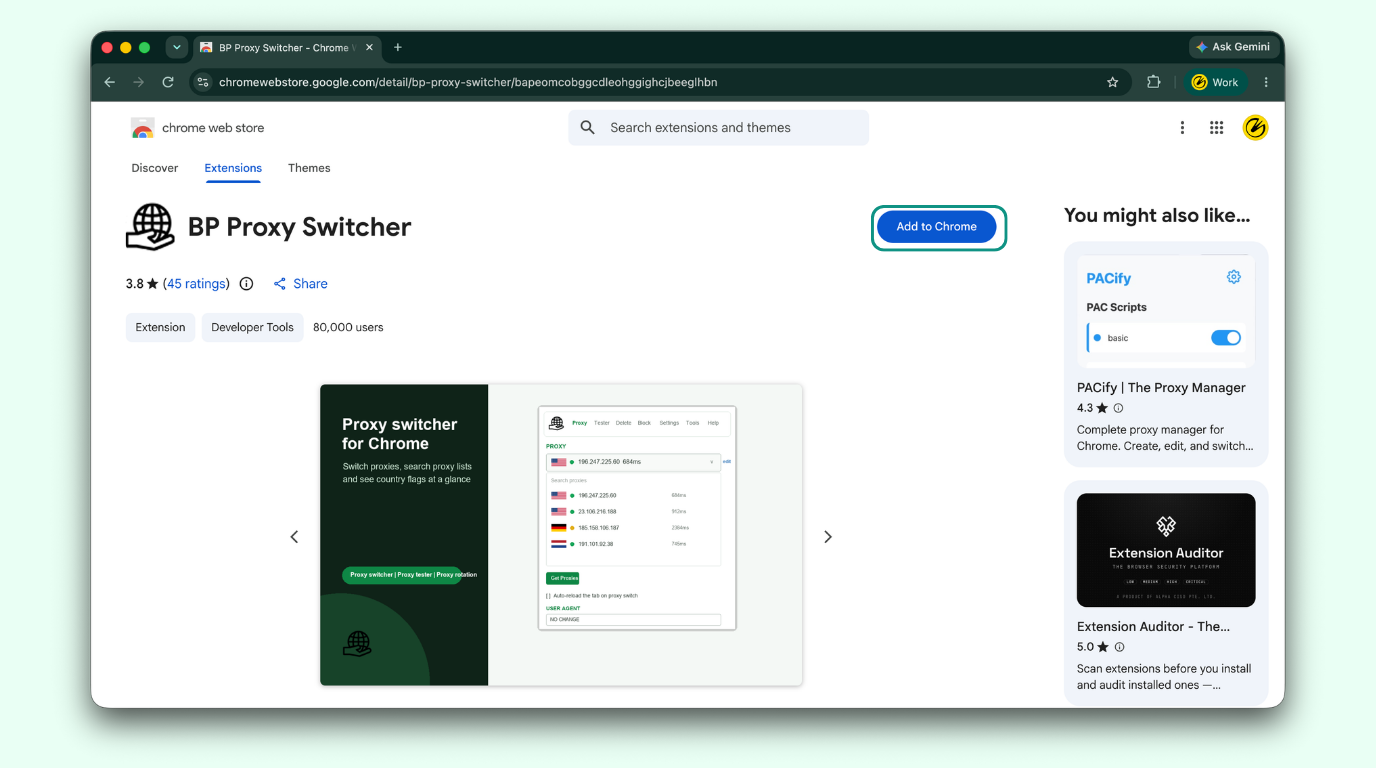
Go to the BP Proxy Switcher page on the Chrome Web Store and click Add to Chrome. Once installed, pin the extension icon to your toolbar so it's easy to reach.
2. Find your CometVPN proxy credentials
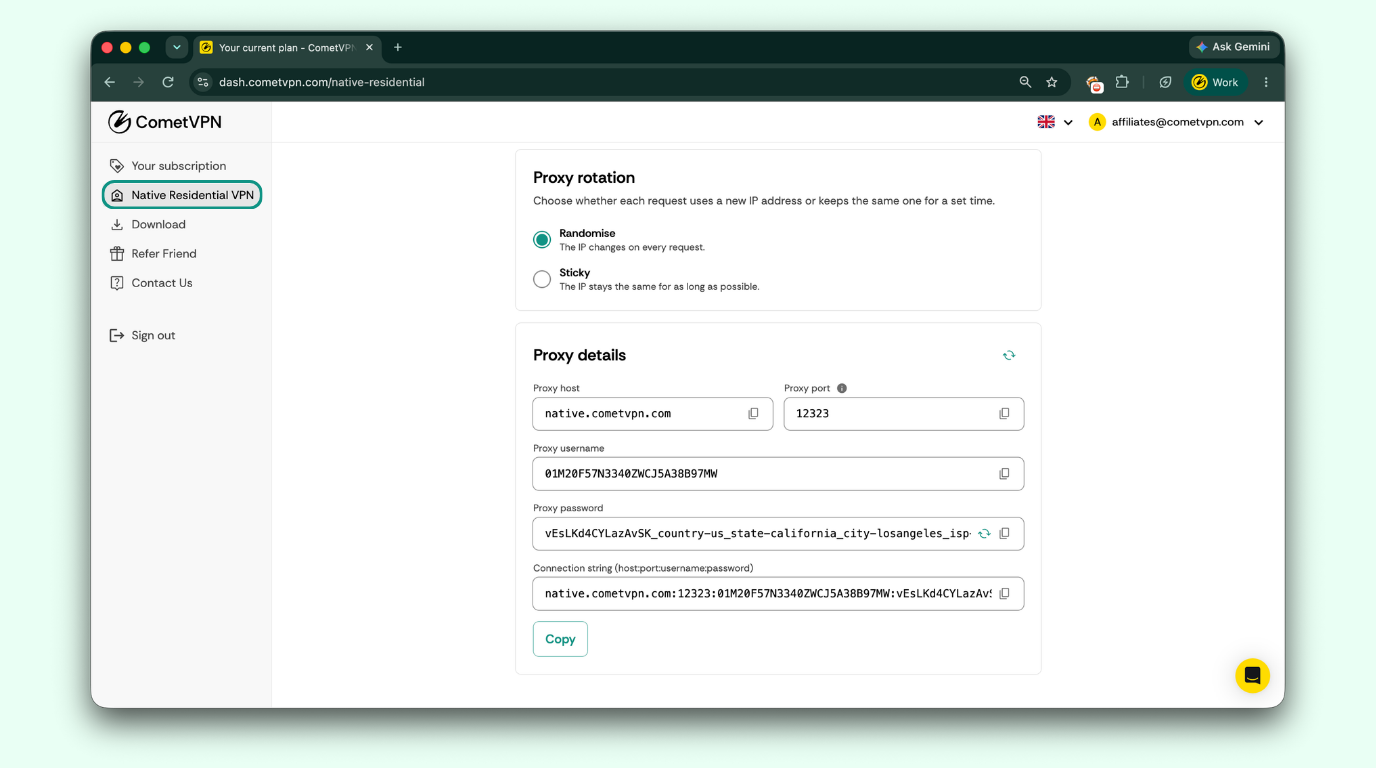
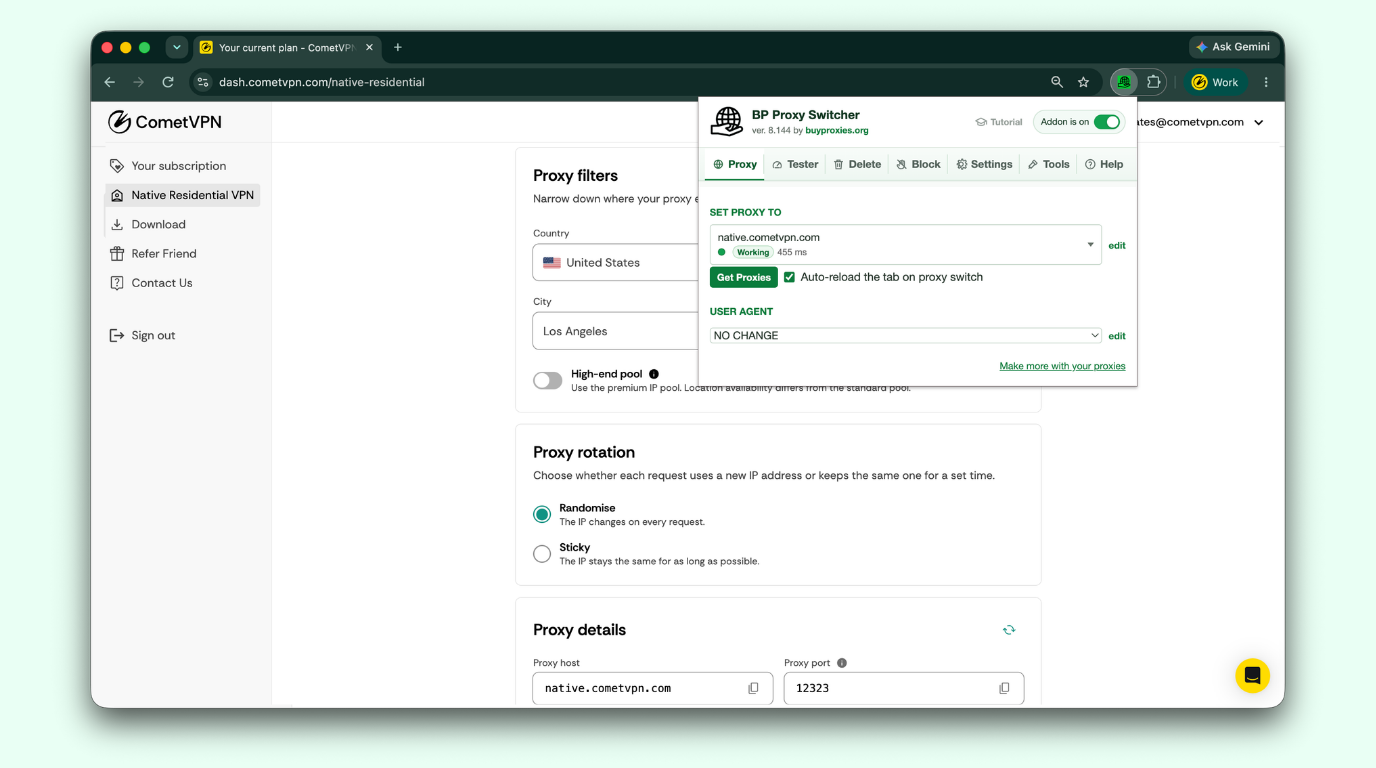
In your CometVPN dashboard, go to Native Residential VPN. If you want, use the proxy filters (Country, State, City, ISP) to narrow down where your proxy exits.
Above your credentials, you'll see a Proxy rotation setting: choose Randomise (new IP per request) or Sticky (same IP for a set time).
Then scroll to Proxy details, where you'll find:
- Proxy host
- Proxy port
- Proxy username
- Proxy password
- A ready-made connection string (host:port:username:password) you can copy in one go
3. Add your proxy in BP Proxy Switcher
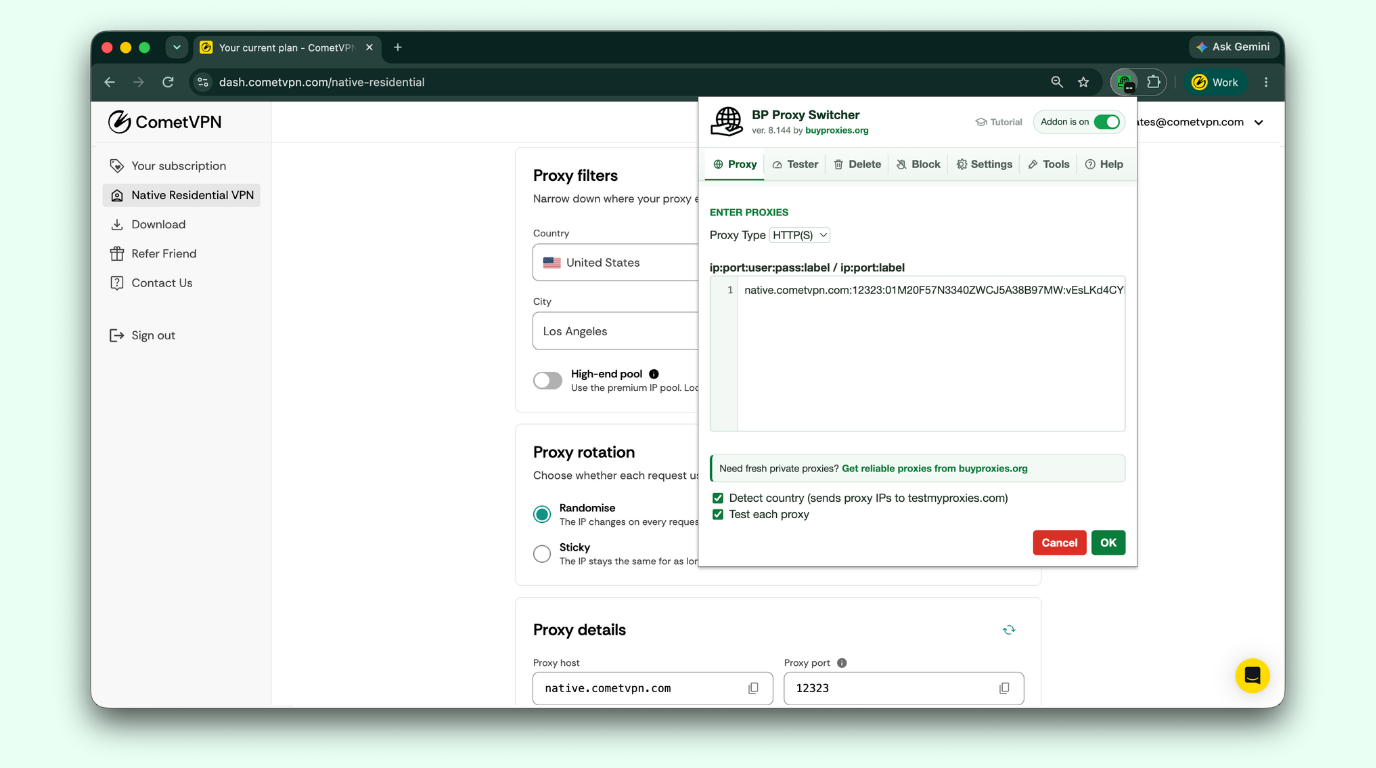
Click the BP Proxy Switcher icon in your toolbar, go to the Proxy tab, and click edit. Then:
- Select the proxy type: HTTP(S) or SOCKS5
- Paste your proxy (one per line) in this format: host:port:username:password
- Optionally enable Detect country or Test each proxy
- Click OK to save
4. Activate the proxy
In the Proxy tab, use the searchable dropdown and select your CometVPN proxy to apply it.
How to Verify It's Working
Visit a site like whatismyip.com – it should show your CometVPN proxy's IP address, not your own.
Troubleshooting:
- Confirm the correct proxy is selected (not "no proxy" or a different saved profile)
- Double-check the username and password were pasted correctly
- Restart your browser if the extension doesn't seem to apply the proxy
Video Guide: How to Set Up BP Proxy Switcher
Ready to connect?
Grab your CometVPN proxy credentials from your dashboard and set up BP Proxy Switcher in a couple of minutes.
Frequently Asked Questions
What is BP Proxy Switcher, and is it free?
BP Proxy Switcher is a free Chrome extension for adding, testing, and switching between proxy servers from the toolbar.
How do I install BP Proxy Switcher in Chrome?
Add it from the Chrome Web Store, then pin the icon to your toolbar.
How do I use BP Proxy Switcher with a CometVPN proxy?
Copy your proxy host, port, username, and password from your CometVPN dashboard, then paste them into BP Proxy Switcher in host:port:username:password format and select the proxy to activate it.
Does BP Proxy Switcher work with SOCKS5 proxies?
Yes, the extension supports HTTP, HTTPS, and SOCKS5 proxies.
Why isn't BP Proxy Switcher connecting to my CometVPN proxy?
Check that the right proxy is selected, that your credentials were entered correctly, and try restarting your browser.
Author
Laura Valskytė
Digital Marketing Specialist at CometVPN
Laura is a digital marketing specialist with a passion for online privacy and cybersecurity. At CometVPN, she focuses on content strategy, SEO, and helping users understand the tools that keep them safe online.
Related articles