








How to Change Region on Disney Plus: Fix “Disney+ Not Available in Your Region”
Disney Plus not available in your region? Learn why Disney+ region errors happen and how to change Disney Plus region safely with or without a VPN.

Laura Valskytė
18 min read
You open Disney+, pick something to watch, and instead of your movie or show, you get a message like “Disney Plus is not available in your region” or “This content isn’t available to watch in your current location.”
It is frustrating, especially when the app worked yesterday or when you are already paying for a subscription.
The good news: in many cases, this problem is fixable.
The less comfortable truth: Disney+ does not usually give you a simple “change region” button inside the app. Your Disney Plus region is mostly detected automatically based on your internet connection, your IP address, your device, and where Disney+ believes you are streaming from.
That is why a VPN is often the easiest way to deal with Disney Plus region errors.
Not always the only way. But in my experience, it is usually the cleanest and most practical one.
In this guide, I will explain why Disney+ says it is not available in your region, whether Disney Plus is region locked, how to change Disney Plus region with a VPN, what you can try without a VPN, and what to do if the region error appears on your TV.
Why Does Disney Plus Say “Not Available in Your Region”?
Disney+ shows a region error when it cannot provide the service or specific content in the location it detects you are using.
Disney officially says that Disney+ is available only in certain countries and regions, and that content availability can differ depending on your location. It also notes that when subscribers travel abroad, they can stream the content available in the country or region they are currently in.
In simple terms: Disney+ does not show the exact same library to everyone.
A viewer in the United States may see a different catalog than someone in the United Kingdom, Germany, Lithuania, Canada, Australia, or Japan. Sometimes the app works, but a specific movie is missing. Sometimes the entire service refuses to load because Disney+ thinks you are in a country where the service is not supported.
The most common reasons for this error are:
- Your IP address points to an unsupported location
- You are traveling abroad
- Your VPN or proxy is being detected
- Your Smart TV region does not match your actual streaming location
- Your app cache still remembers an old location
- Your DNS settings expose a different location than your VPN
- Disney+ does not have rights to stream that content in your current region
My rule is simple: before changing ten different settings on your TV, first understand what Disney+ sees from its side.
Most of the time, it sees your IP address before anything else.
Is Disney Plus Region Locked?
Yes, in practical terms, Disney Plus is region locked.
That does not always mean Disney+ is completely blocked. Sometimes it means the available content library changes. Sometimes it means one title disappears. Sometimes it means you get a full region error and cannot stream at all.
Disney’s subscriber terms also say that users may not access the service from locations where Disney does not have the rights or where the service is not made available.
This is why people often search for:
- is Disney Plus region locked
- why is Disney Plus not available in my region
- Disney Plus saying not available in my region
- Disney Plus region error
- why is Disney+ not working in my region
The annoying part is that Disney+ does not always explain the exact technical reason. It may only show a short message and leave you guessing.
From a technical perspective, the error usually comes down to this: Disney+ checked your location and decided it cannot show you the service or content from there.
Can You Change Your Region on Disney Plus?
You cannot usually change your Disney Plus region manually inside the app.
There is no simple setting like:
Settings > Region > Choose countryThat would be convenient, but streaming platforms do not usually work that way.
Disney+ determines your region automatically based on signals such as:
- Your IP address
- Your account country
- Your device location
- Your payment region
- Your app store region
- Your DNS settings
- Your network configuration
Changing the language in Disney+ does not change your region. Changing your profile icon does not change your region. Even changing your phone’s country settings may not be enough if your IP address still points to another country.
This is why VPNs are popular for this problem.
A VPN changes the location that websites and apps see from your internet connection. Instead of Disney+ seeing your real IP address, it sees the IP address of the VPN server you connected to.
For example, if you connect to a VPN server in the US, Disney+ may see a US-based connection. If you connect to a VPN server in the UK, Disney+ may see a UK-based connection.
That is the basic idea.
How to Change Disney Plus Region With a VPN
Using a VPN is usually the simplest way to change the region Disney+ sees.
Here is how I would do it.
Step 1: Choose a Reliable VPN
Start with a VPN that has stable servers, good speeds, and multiple country options.
This matters because streaming is more demanding than normal browsing. A slow or overcrowded VPN can cause buffering, login problems, or poor video quality. A low-quality free VPN may also have IP addresses that are already blocked by major streaming platforms.
For Disney+, you want a VPN that is:
- Fast enough for HD or 4K streaming
- Easy to use on desktop and mobile
- Stable during long sessions
- Able to switch between multiple server locations
- Designed with privacy in mind
- Not overloaded with suspicious free servers
This is where a tool like CometVPN fits naturally. The point is not to make the process complicated. The point is to open the VPN, pick a location, connect, and go back to Disney+.
Step 2: Connect to a Supported Country
Open your VPN app and connect to a country where Disney+ is available.
Common choices include:
- United States
- United Kingdom
- Canada
- Germany
- France
- Netherlands
- Australia
Do not overthink the first attempt. Pick one supported country, connect, and then test Disney+.
If one server does not work, try another server in the same country or choose a different country. Streaming platforms sometimes block individual VPN IP addresses, so switching servers can make a difference.
Step 3: Close Disney+ Completely
This step is more important than people think.
Do not just minimize the app. Close it fully.
On a browser, close the Disney+ tab. On a phone or tablet, swipe the app away from recent apps. On a Smart TV, exit the app completely. If the app keeps running in the background, it may continue using old location data.
Step 4: Clear Cache If Needed
If Disney+ still shows the old region error, clear the app cache.
This is especially useful on:
- Android phones
- Android TV
- Fire TV
- Smart TVs
- Browsers
Your cache may store old location data, login sessions, or region checks. Clearing it forces Disney+ to request fresh information.
On a browser, you can also try:
- Opening Disney+ in a private window
- Clearing cookies for Disney+
- Logging out and logging back in
- Trying another browser
Step 5: Open Disney+ Again
Once the VPN is connected and Disney+ is fully restarted, open the app again.
If everything works, Disney+ should now detect the VPN server location instead of your original IP location.
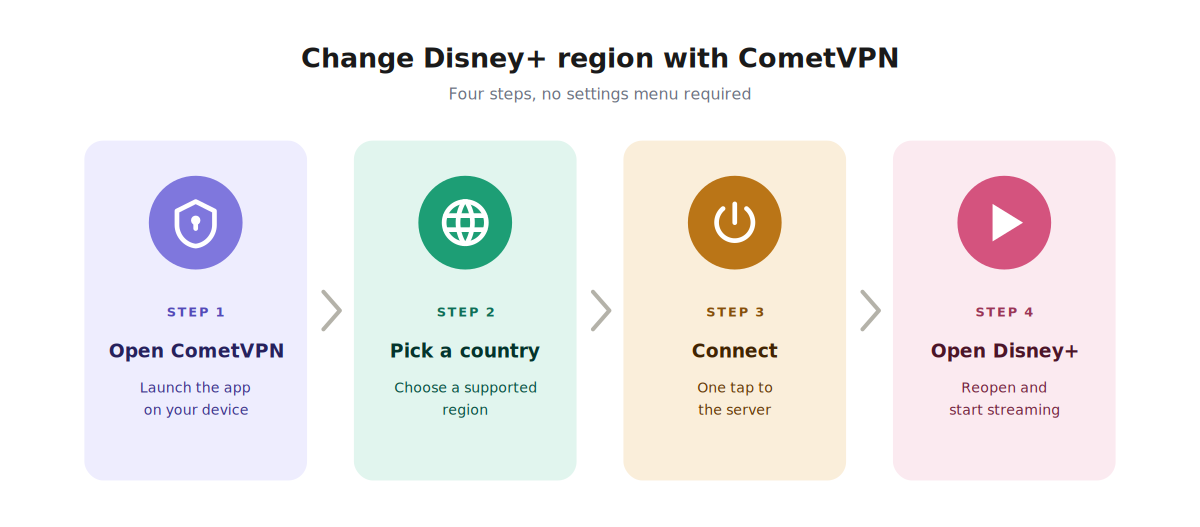
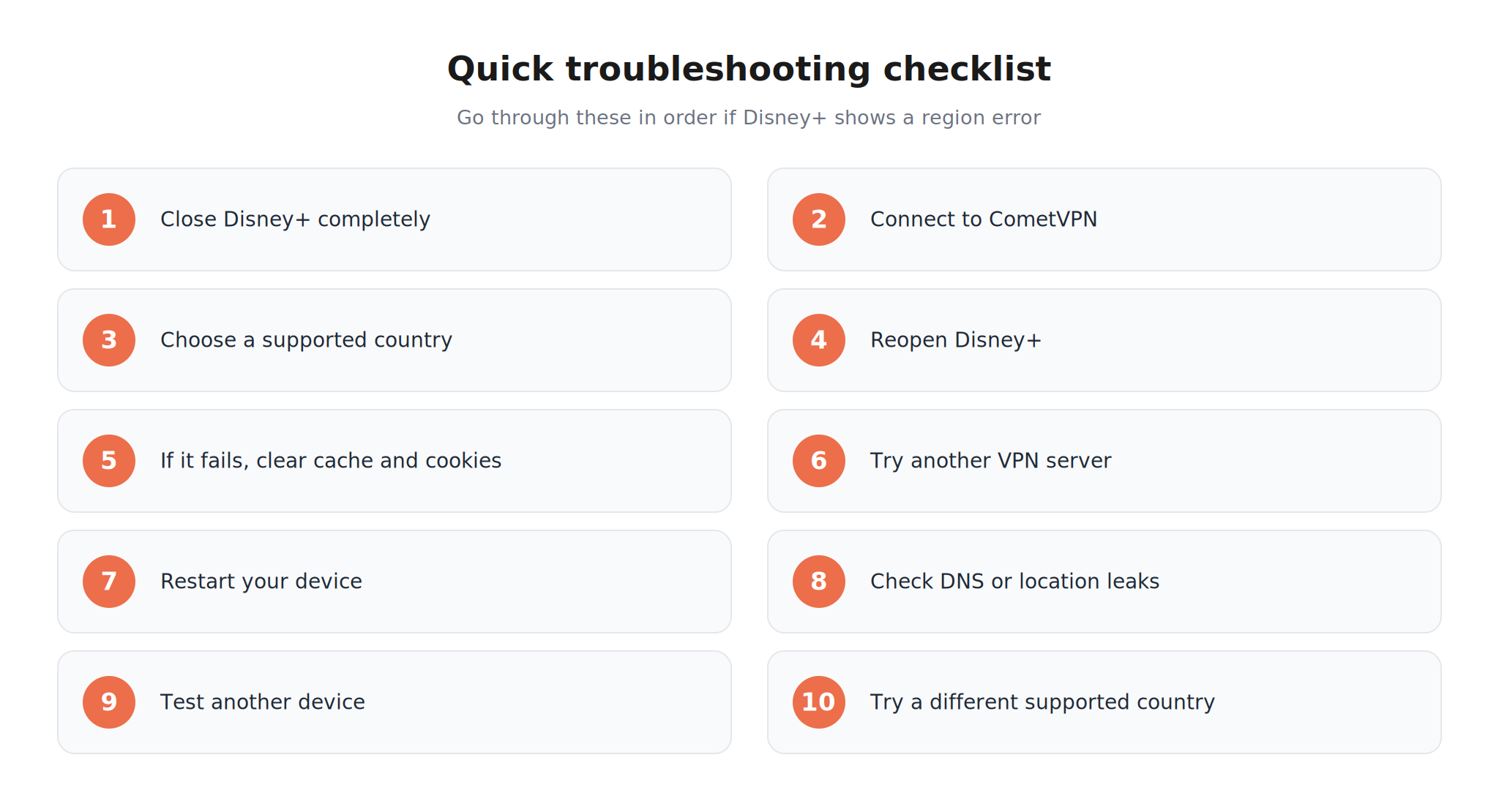
This is the usual flow:
- Open CometVPN
- Choose a supported country
- Connect
- Restart Disney+
- Start streaming
Simple, but effective.
Step 6: If It Still Does Not Work, Switch Servers
If Disney+ still says it is not available in your region, do not assume the whole VPN has failed.
Try this:
- Disconnect from the current VPN server
- Connect to another server in the same country
- Restart Disney+
- Clear cookies or cache
- Try a different browser or device
- Check that your real IP is not leaking through DNS
- Make sure location permissions are not exposing a different country
Streaming platforms do not block every VPN connection equally. Sometimes one server fails and another one works perfectly.
How CometVPN Helps With Disney+ Region Errors
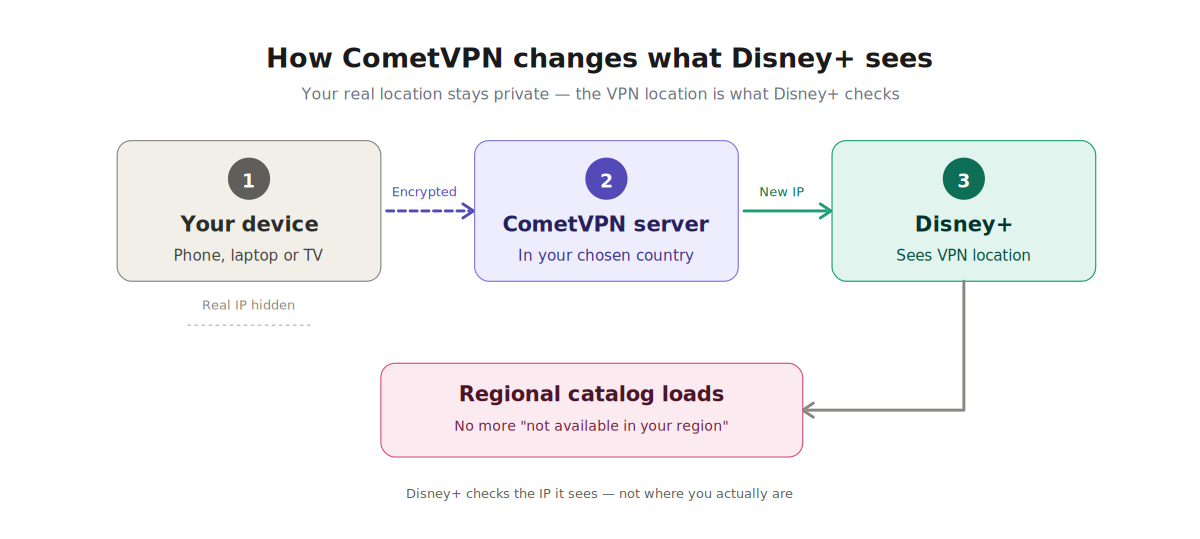
The easiest way to think about this is simple: Disney+ checks the location it sees from your internet connection. When you use CometVPN, Disney+ sees the VPN server location instead of your regular IP address.
That is why the order matters. Connect to the VPN first, then reopen Disney+. If you open Disney+ first and connect later, the app may still hold on to the old location data.
Behind the scenes, the process looks like this: your device connects to a CometVPN server in the country you choose, and Disney+ checks that server location. Your regular IP address stays hidden from the streaming service.
Want the Easier Route?
If you want a simpler way to deal with Disney+ region errors, connect through a supported location with CometVPN before reopening Disney+.
How to Change Disney Plus Region Without VPN
Now, let’s be honest.
Can you change Disney Plus region without a VPN?
Sometimes you can fix the region error without a VPN. But that is not the same as truly changing your Disney+ region.
Without a VPN, you are mostly troubleshooting. You are trying to fix incorrect location detection, app cache problems, device settings, or network issues.
Here are the things worth trying.
Restart the Disney+ App
Close Disney+ completely and open it again.
This can help if you recently changed networks, traveled, disconnected from a VPN, or moved between mobile data and Wi-Fi.
On TV devices, I would also restart the whole TV or streaming stick. Smart TV apps are not always great at refreshing location data quickly.
Check Your Internet Connection
Try switching networks.
For example:
- From Wi-Fi to mobile data
- From mobile data to Wi-Fi
- From one Wi-Fi network to another
- From a public network to a private network
Sometimes the issue is not Disney+ itself. It can be your network, ISP routing, DNS provider, or a public Wi-Fi connection that Disney+ does not like.
Turn Off Proxy Services
If you are using a proxy, disable it and try again.
Disney+ may block proxies or treat them as suspicious. A badly configured proxy can also make your location look inconsistent, which can trigger region errors.
Turn Off a Bad VPN
This may sound strange in an article that recommends VPNs, but it matters.
A low-quality VPN can make Disney+ worse, not better.
If Disney+ detects your VPN, you may see errors like:
- Disney+ not available in your region
- This content is not available in your current location
- Error Code 73
- Login or playback problems
Disney’s help page for Error Code 73 describes it as a location-based availability error, shown when content is not available in your current location.
If your current VPN is causing this, disconnect it or switch to a better server.
Check Device Region Settings
On phones, tablets, and Smart TVs, your device region can sometimes create problems.
Check:
- Device country or region
- App store country
- Time zone
- Date and time settings
- GPS or location permissions
- Smart TV region settings
This does not always change your Disney+ catalog, but it can help fix mismatched location signals.
For example, if your IP address says one country, your device says another, and your payment region says a third, Disney+ may decide something looks wrong.
Clear Disney+ Cache and Cookies
This is one of the most practical fixes.
On a browser, clear cookies and site data for Disney+. On mobile or TV, clear the app cache if your device allows it.
Then open Disney+ again and log in.
Cache problems are common after:
- Traveling
- Switching VPN servers
- Using hotel Wi-Fi
- Moving between countries
- Changing DNS settings
- Updating the Disney+ app
Download Content Before Traveling
If you know you will be traveling, download movies or episodes before you leave.
Disney’s help pages say that while abroad, subscribers can stream content available in the country or region they are in, and recommend downloading favorite movies and shows to a device before traveling.
This will not change your region, but it can save you from the classic airport or hotel problem: you finally have time to watch something, and Disney+ decides your location is a problem.
So, Can You Really Change Disney Plus Region Without VPN?
Usually, no.
You can fix some region errors without a VPN, especially if the problem is caused by cache, device settings, or a bad network.
But if Disney+ is unavailable in your current location, or if you want Disney+ to see you as connecting from another country, then you need a tool that changes your visible IP location.
That is exactly what a VPN does.
So the practical answer is:
- Without VPN: good for troubleshooting
- With VPN: best for changing the location Disney+ sees
Disney Plus Not Available in Your Region on TV
Disney Plus region errors on TV are especially annoying because Smart TVs are less flexible than laptops or phones.
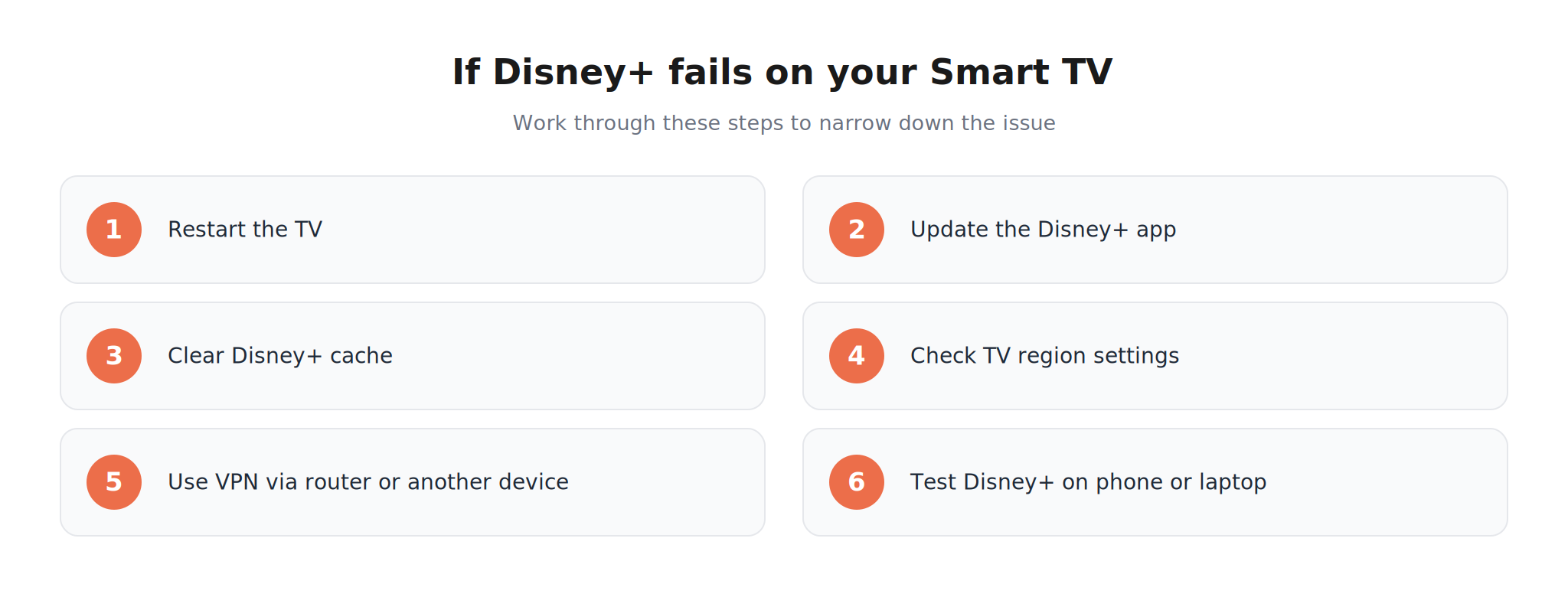
If you see “Disney Plus not available in your region” on TV, try these steps.
Restart Your TV
Turn the TV off completely. If possible, unplug it for 30 seconds, then plug it back in.
This clears temporary app and network issues.
Update the Disney+ App
Open your TV’s app store and check whether Disney+ has an update.
Old app versions can behave badly with region checks, login sessions, and playback.
Clear Disney+ Cache
On Android TV or Fire TV, you can usually clear the Disney+ app cache from system settings.

The exact wording depends on your TV or streaming device, but the idea is the same: find Disney+ in your installed apps and clear its temporary data.
Check Your Smart TV Region
Some TVs have region settings that affect app availability.
Check your TV settings and app store region. If the TV was bought in another country or configured for another market, it may cause problems with app access.
Use VPN on Your Router
Many Smart TVs do not support VPN apps directly.
In that case, you have a few options:
- Install VPN on your router
- Use a VPN-enabled hotspot from your laptop
- Use a streaming device that supports VPN apps
- Cast from a device connected to the VPN
Router setup is not always beginner-friendly, but it is useful if you want your TV to use the VPN connection automatically.
Try Another Device
If Disney+ does not work on your TV, test it on a laptop or phone using the same network.
This helps you understand where the problem is.
If Disney+ works on your laptop but not your TV, the TV app or TV region settings may be the issue.
If Disney+ fails on every device, the problem is more likely your IP address, VPN server, DNS, or actual region availability.
Why Disney Plus Might Not Work Even With a VPN
A VPN can help, but it is not magic.
Sometimes Disney+ still does not work after you connect to a VPN. Here are the most common reasons.
Disney+ Detected the VPN Server
Streaming platforms regularly detect and block VPN IP addresses.
If this happens, switch to another server.
A good VPN usually gives you multiple options, so you are not stuck with one blocked IP.
Your Cache Still Shows the Old Location
If you connect to a VPN but Disney+ still has old cookies or app cache, it may continue showing the region error.
Fix:
- Clear cookies
- Clear app cache
- Restart the app
- Log out and log back in
Your DNS Is Leaking
A DNS leak means your traffic appears to use the VPN, but your DNS requests still reveal your original network or country.
This can confuse Disney+.
A privacy-focused VPN should protect against DNS leaks, but it is still worth checking if the problem keeps happening.
Your GPS Location Does Not Match
On mobile devices, apps may use GPS or location permissions.
If your IP says one country but your GPS says another, Disney+ may reject the connection or show inconsistent behavior.
Try disabling location permissions for Disney+ if your device allows it.
The Country You Chose Does Not Have the Content
Changing region does not guarantee every title will appear.
Disney+ libraries differ by country because of licensing. If a movie is unavailable in one region, try another supported country.
What Is Disney+ Error Code 73?
Disney+ Error Code 73 is one of the most common location-related errors.
It usually appears when Disney+ thinks the content is not available in your current location. Disney’s help page describes Error Code 73 as a message related to content not being available to watch in your current location.
In practice, Error Code 73 can happen when:
- You are in an unsupported country
- You are traveling
- Disney+ detects a proxy or VPN
- Your IP location is wrong
- Your DNS settings point to a different region
- Your app cache is outdated
The fix depends on the cause.
If you are in a supported country but still see the error, start with cache, app restart, and network checks.
If you are in a region where Disney+ is not available, a VPN is usually the most practical option.
Best Practices for Using a VPN With Disney Plus
If you want fewer errors and smoother streaming, follow these habits.
Connect Before Opening Disney+
Open your VPN first. Connect to the country you want. Then open Disney+.
This gives Disney+ a clean location signal from the start.
Do Not Switch Servers Mid-Stream
If you switch VPN servers while Disney+ is open, the app may detect a location change and stop playback.
Close Disney+ before changing VPN servers.
Use Nearby Servers When Possible
If you only need privacy and stable access while traveling, choose a nearby supported country.
The farther the server, the higher the chance of slower speeds.
Avoid Free VPNs for Streaming
Free VPNs often have:
- Slow speeds
- Crowded servers
- Limited countries
- Blocked IP addresses
- Weak privacy protections
- Data limits
They may work for basic browsing, but streaming is a different story.
Keep the App Updated
Update both your VPN app and Disney+ app.
Old versions can cause connection, login, and playback issues.
Privacy Note: A VPN Is Not Only About Streaming
People often discover VPNs because of streaming problems, but privacy is the bigger picture.
When you use a VPN, your internet traffic is encrypted between your device and the VPN server. Your real IP address is also hidden from the websites and apps you visit.
That can help reduce:
- IP-based tracking
- Location exposure
- Public Wi-Fi risks
- ISP-level browsing visibility
- Basic network snooping
A VPN will not make you invisible online. No honest IT person should claim that.
But it does give you more control over what your internet connection reveals.
For me, that is the real value: not just getting past a region error, but reducing how much of your location and network identity you expose by default.
Quick Troubleshooting Checklist
If Disney+ says it is not available in your region, start with the basics and move step by step. Do not change everything at once, because then you will not know what actually fixed it.
If you are on a Smart TV, work through the TV-specific checks one by one.
FAQ
How do I change my region on Disney Plus?
You usually cannot manually change your Disney Plus region in the app settings. Disney+ detects your region automatically, mostly through your IP address and other location signals. To change the location Disney+ sees, you can connect to a VPN server in a supported country and then reopen Disney+.
Why does Disney Plus say not available in my region?
Disney+ says it is not available in your region when the service or content is not available in the location it detects. This can happen because of licensing, unsupported countries, travel, VPN detection, proxy use, DNS issues, or old app cache.
Is Disney Plus region locked?
Yes, Disney Plus is region locked in the practical sense. The service and content library can vary by country or region. Disney+ states that content availability may differ depending on location.
How do I change Disney Plus region with a VPN?
Connect to a VPN server in a country where Disney+ is available, close Disney+ completely, clear cache if needed, and reopen the app. Disney+ should then see the VPN server’s location instead of your original IP location.
Can I change Disney Plus region without VPN?
You can sometimes fix a Disney Plus region error without a VPN by restarting the app, clearing cache, checking device region settings, switching networks, or turning off a faulty proxy. But if you want to change the location Disney+ sees, a VPN is usually the easiest option.
Why is Disney+ not working in my region?
Disney+ may not work in your region because the service is not available there, because the content is not licensed there, or because Disney+ detects a location mismatch. A VPN, proxy, DNS issue, or Smart TV region setting can also trigger this problem.
Why does Disney Plus say not available in your region on TV?
On TV, this error can happen because of the TV’s region settings, old Disney+ app cache, outdated app version, network location, or unsupported country. Try restarting the TV, updating Disney+, clearing cache, and using VPN through a router or supported streaming device.
Does changing my Disney+ language change my region?
No. Changing the language only changes the interface or audio/subtitle preferences. It does not change your Disney Plus region.
Does changing my App Store country change Disney Plus region?
Not reliably. Your app store country may affect app availability or billing, but Disney+ still uses location signals like IP address, current country, and account information to determine access and content.
What should I do if Disney+ detects my VPN?
Switch to another VPN server, clear Disney+ cache, restart the app, and try again. If the VPN has multiple servers in the same country, test another one before changing countries.
Final Thoughts
Disney+ region errors are annoying because they feel personal. You paid for the service, opened the app, and expected it to work.
But technically, the error is usually not about you. It is about location detection, licensing, and the region Disney+ thinks you are streaming from.
If the problem is caused by cache, device settings, or a bad network, you may be able to fix it without a VPN.
But if you want to change the region Disney+ sees, a VPN is usually the most straightforward option.
Connect to a supported country, restart Disney+, clear cache if needed, and try again.
That is the simple version. And in most real-world cases, simple is exactly what you want.
Author
Laura Valskytė
Digital Marketing Specialist at CometVPN
Laura is a digital marketing specialist with a passion for online privacy and cybersecurity. At CometVPN, she focuses on content strategy, SEO, and helping users understand the tools that keep them safe online.
Related articles

4 min read
Ethernet vs Wi-Fi: Which One is Better?
Ethernet and Wi-Fi are the two main ways to connect your computer to the internet. While Wi-Fi has received significantly more attention in recent years, especially among consumers, due to its simplicity and flexibility, ethernet is still widely used in various other applications.
Even if Wi-Fi is significantly more popular, it isn’t strictly better. Both methods have their benefits and drawbacks. Wi-Fi’s popularity comes from its ease-of-use and flexibility, but an ethernet connection can be much more useful in certain scenarios.

Adomas Šulcas

5 min read
How to Change Chrome Proxy Settings: The Ultimate Guide
A proxy server is an easy alternative to a VPN that can perform most of the functions of the latter. It’s a server that stands between your device and the destination server, taking your connection requests and forwarding them in your name.
Destination servers in almost all cases see the proxy server as the originator of the request. As such, proxies are widely used in various, mostly business-related applications whenever privacy, security, location changing, and several other factors are at play.

Guoda Šulcaitė