







How to Bypass YouTube Age Verification Problems Safely
You open YouTube, click on a video, and instead of watching it, you get asked to verify your age.

Laura Valskytė
14 min read
You open YouTube, click on a video, and instead of watching it, you get asked to verify your age.
Sometimes that makes sense. The video may be age-restricted, and YouTube needs to check that the viewer is old enough. But sometimes the prompt appears when you are already an adult, already signed in, and just trying to watch normally.
That is when people start searching for how to bypass YouTube age verification.
Let’s be clear from the start: if you are under 18, you should not try to bypass YouTube age restrictions. Those limits exist for a reason. But if you are over 18 and YouTube is still blocking you, asking again and again, or showing verification prompts because of region, browser, account, or connection issues, there are safe ways to fix the problem.
In many cases, the right solution is not to trick YouTube. It is to make sure YouTube can correctly read your account, location, browser, and connection.
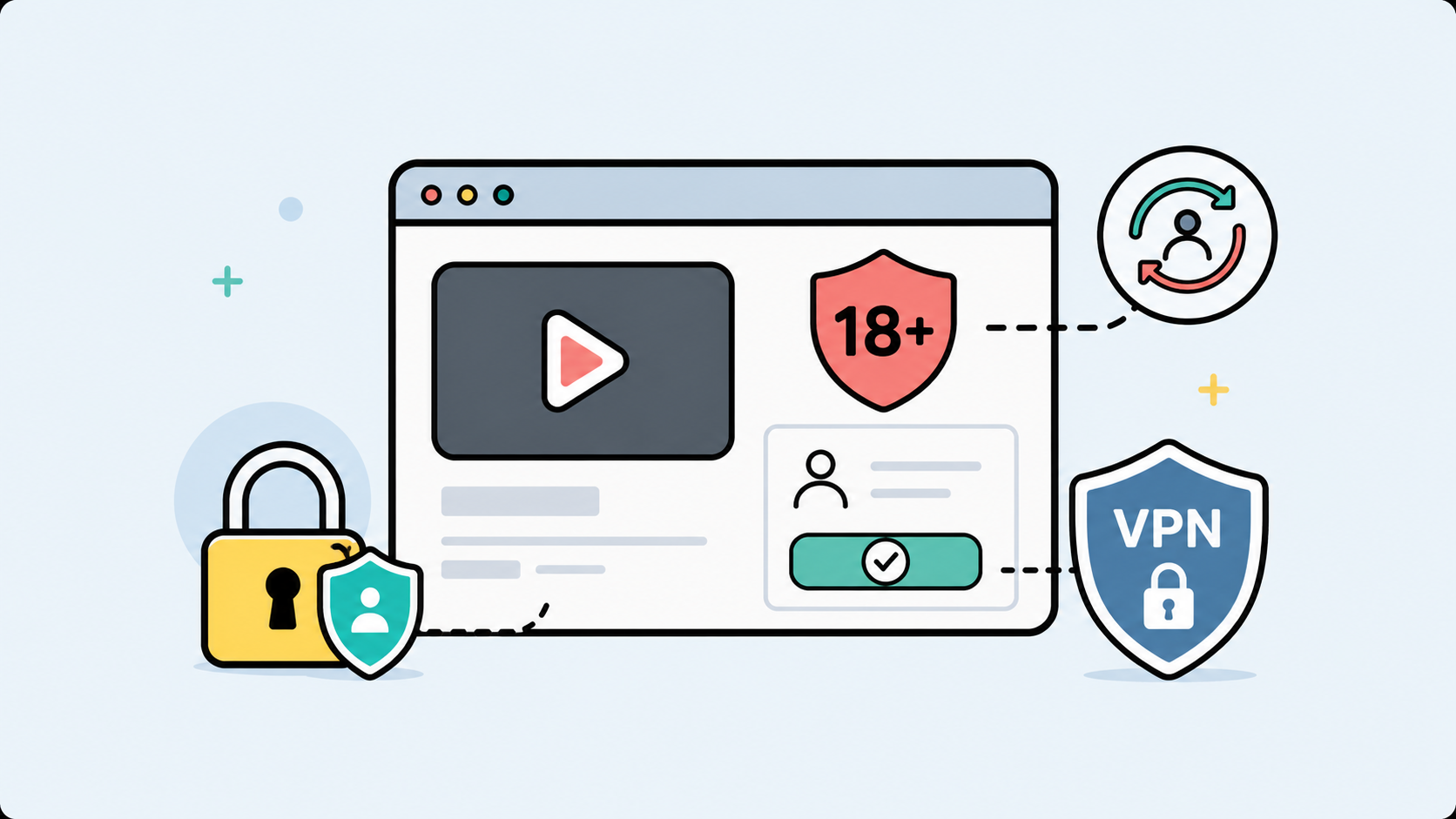
That is where CometVPN can help. A VPN will not change your age and it will not remove account-level restrictions. But it can help if YouTube’s age verification prompt is triggered by an unstable IP address, travel, public Wi-Fi, region mismatch, or location-based access issue.
In this guide, I will explain why YouTube asks for age verification, what you can and cannot bypass, how to fix false age checks safely, and how to set up CometVPN for a cleaner YouTube connection.
Why YouTube Asks for Age Verification
YouTube age verification is usually connected to age-restricted content.
According to YouTube, age-restricted videos are not viewable if you are signed out, under 18, or watching the video embedded on most third-party websites. In some regions, including the European Union, European Economic Area, Switzerland, the United Kingdom, and Australia, YouTube may also ask users to verify their age before watching age-restricted videos.
That means the problem is not always your device. Sometimes YouTube is doing exactly what it is designed to do.
You may see age verification because:
- You are not signed in to a Google account
- Your Google account birthday shows that you are under 18
- You are watching an age-restricted video
- You opened the video through an embedded player on another website
- YouTube needs extra age confirmation in your region
- Restricted Mode is enabled
- Your browser cookies or app cache are outdated
- Your IP location looks different from your usual region
- You are using public Wi-Fi, school Wi-Fi, work Wi-Fi, or a filtered network
From a technical point of view, YouTube is not just asking, “Is this person old enough?” It is also checking whether the account, session, device, network, and video type make sense together.
When those signals conflict, you can get stuck in verification loops.
Can You Actually Bypass YouTube Age Verification?
This depends on what you mean by “bypass.”
If you mean accessing age-restricted content while under 18, then no. That is not something I can help with, and it is not something you should try to do.
If you mean fixing YouTube age verification when you are an adult but YouTube keeps blocking you, then yes, there are safe fixes.
The goal is not to fake your age. The goal is to remove the things that make YouTube unsure about your account or connection.
For example, you may need to:
- Sign in to the correct Google account
- Verify or update your birthday in your Google account
- Turn off Restricted Mode
- Open the video directly on YouTube
- Clear cookies and cache
- Use a stable IP location through CometVPN
- Avoid public or filtered networks
- Complete Google’s official age verification flow if required
CometVPN can help with the connection and region side of the problem. It cannot override YouTube’s age rules for an under-18 account, and it cannot change your Google account birthday.
That distinction matters.
First, Check Your Google Account Age
Before touching VPN settings, check the simple account-level issue first.
YouTube uses your Google account information. If your Google account birthday is missing, incorrect, or under 18, YouTube may block age-restricted videos.
Google’s help page says users can verify or update their birthday by signing in to their Google account privacy page, opening Personal info, selecting Birthday, and saving the correct information.
Use your real date of birth. Do not add false information just to get around a restriction.
Try this:
- Sign in to your Google account.
- Open your Google account settings.
- Go to Personal info.
- Check Birthday.
- Update it if it is wrong.
- Save changes.
- Sign out of YouTube and sign back in.
If your account age is the issue, this is the cleanest fix. A VPN should not be the first tool you use for an account information problem.
Check If Restricted Mode Is Turned On
Restricted Mode is not the same as YouTube age restriction.
YouTube describes Restricted Mode as an optional setting that helps filter potentially mature content. YouTube also notes that turning on Restricted Mode is not the same as age-restricting videos.
Still, Restricted Mode can make YouTube feel more locked down than it should.
Check this before assuming you have an age verification problem:
- Open YouTube.
- Click your profile picture.
- Look for Restricted Mode.
- Turn it off if you do not need it.
- Refresh YouTube.
If you are on a school, library, work, or public network, Restricted Mode may be controlled by the network administrator. In that case, changing it in your account may not be enough.
This is one of the situations where using your own private connection or a trusted VPN connection can help you test whether the network is part of the problem.
Open the Video Directly on YouTube
Age-restricted YouTube videos often do not work properly when embedded on third-party websites.
YouTube says age-restricted videos are not viewable when watched through most third-party embedded players.
So if a video is blocked inside a blog post, forum, social feed, or external website, open it directly on YouTube.
Do this:
- Click the YouTube logo or video title.
- Open the video on youtube.com or in the YouTube app.
- Make sure you are signed in.
- Try playing it again.
This fix sounds too simple, but it solves a surprising number of “YouTube age verification not working” cases.
How CometVPN Can Help With YouTube Age Verification Problems
A VPN does not change your age. It does not edit your Google account. It does not remove a real age restriction.
What it can do is change the IP address and location YouTube sees from your connection.
That can help when the issue is related to your network or region, not your actual age.
CometVPN may help if:
- YouTube keeps asking for verification while you travel
- Your IP address points to the wrong country
- You are using hotel, airport, school, or work Wi-Fi
- Your network has content filters enabled
- YouTube behaves differently on one connection than another
- You want a more stable region signal when using YouTube
- You want more privacy while watching on public Wi-Fi
Think of CometVPN as a way to clean up the connection side of the problem.
If YouTube is confused because your account is in one country, your IP appears in another, and your current network is filtered, a stable VPN connection can make the session more consistent.
But if YouTube is asking for official age verification because your account needs it, CometVPN will not replace that step.
How to Set Up CometVPN for YouTube
If you are over 18 and YouTube age verification keeps appearing because of region or connection issues, set up CometVPN before opening YouTube.
The order matters. If YouTube is already open, it may keep using old cookies, cache, or session data.
Step 1: Close YouTube Completely
Close the YouTube tab, browser, or app.
On mobile, swipe the YouTube app away from recent apps. On desktop, close the YouTube tab before changing VPN location.
Step 2: Open CometVPN
Launch CometVPN on your device.
If you are troubleshooting YouTube, choose a stable country and stay with it. Do not switch servers repeatedly while YouTube is open.
Step 3: Choose a Consistent Location
For the best result, choose a location that makes sense for your normal account use.
For example, if your Google account is usually used in the United States, connect to a US server. If you normally use YouTube from the UK, connect to a UK server.
The point is not to look random. The point is to make your connection more consistent.
Step 4: Connect to the VPN
Connect and wait until CometVPN confirms the connection is active.
Do not open YouTube before the VPN is fully connected.
Step 5: Clear YouTube Cookies or Use a Private Window
If YouTube keeps remembering the old region or old verification state, clear cookies for YouTube.
On the desktop, you can also test in a private browsing window.
This gives YouTube a cleaner session after the VPN connection is active.
Step 6: Sign In to YouTube
Open YouTube directly and sign in to your Google account.
Age-restricted videos are not viewable when you are signed out, so this step matters.
Step 7: Open the Video Directly on YouTube
Do not test from an embedded player on another site.
Open the video directly on YouTube and try again.
Step 8: Complete Official Verification if YouTube Still Requires It
If YouTube still asks you to verify your age, follow Google’s official verification process.
Do not upload documents to random “age verification bypass” websites. Do not install shady extensions. Do not use modified YouTube apps.
If verification is required, use the official Google flow only.
Make Your YouTube Connection More Consistent
If YouTube keeps showing verification prompts while you travel or use unstable networks, start by making your connection cleaner. Connect through CometVPN, clear YouTube cookies, sign in again, and test the video directly on YouTube.
Best CometVPN Settings for YouTube
For YouTube, stability matters more than constantly changing countries.
Use these settings and habits:
- Connect to CometVPN before opening YouTube
- Use one stable country while testing
- Choose a nearby server for better speed
- Avoid switching VPN servers mid-video
- Clear cookies after changing VPN country
- Use a private browsing window for testing
- Do not use free proxies with YouTube
- Keep your browser and YouTube app updated
If YouTube asks for verification on one network but not another, the network is likely part of the problem. Public Wi-Fi, school networks, work networks, and shared IP addresses can all create strange YouTube behavior.
A private VPN connection gives you a more predictable path to YouTube.
YouTube Still Asking for Age Verification? Try This Checklist
If YouTube still asks for age verification, go through the basics in order.
- Make sure you are signed in to YouTube.
- Check your Google account birthday.
- Confirm the account is over 18.
- Turn off Restricted Mode if you do not need it.
- Open the video directly on YouTube, not through an embedded player.
- Clear YouTube cookies and cache.
- Update your browser or YouTube app.
- Close YouTube completely.
- Connect to CometVPN.
- Use a stable country that matches your normal account use.
- Open YouTube again and sign in.
- Complete official Google age verification if YouTube still requires it.
Do not skip the account age check. If the Google account itself is the problem, changing network settings will not fix it.
What Not to Do
Some “YouTube age verification bypass” advice online is not just unreliable. It is risky.
Avoid anything that asks you to hand over account details, identity documents, or payment information outside Google’s official flow.
Do not use:
- Fake age verification websites
- Random browser extensions that promise to unlock age-restricted videos
- Modified YouTube apps
- Unknown APK files
- Downloader sites that ask for your Google login
- Fake ID services
- Shared accounts from strangers
These tools can steal your account, collect your data, install malware, or break YouTube’s rules.
If YouTube requires age verification, use Google’s official process. If your issue is connection-related, use a trusted VPN like CometVPN and fix the session cleanly.
Why YouTube Age Verification May Appear While Traveling
Travel is one of the most common reasons YouTube starts acting differently.
Your Google account may normally be used in one country, but suddenly your IP address appears somewhere else. Add hotel Wi-Fi, public networks, browser cookies, and regional rules, and YouTube may decide it needs to check more carefully.
That does not always mean something is wrong. It may simply mean YouTube sees a new environment.
When traveling, this setup is cleaner:
- Connect to CometVPN before opening YouTube.
- Choose the country where you normally use your account.
- Open YouTube directly.
- Sign in to your Google account.
- Clear cookies if YouTube keeps showing the same prompt.
This helps YouTube see a more familiar connection instead of a constantly changing travel network.
Does a VPN Bypass YouTube Age Verification?
A VPN can help with region and network issues. It cannot bypass YouTube’s account-level age rules.
That is the honest answer.
CometVPN can help when:
- Your IP location is wrong
- You are traveling
- You are on filtered Wi-Fi
- YouTube behaves differently across networks
- You want more privacy and a stable connection
CometVPN cannot:
- Make an under-18 account watch age-restricted content
- Change your Google account birthday
- Remove official YouTube age verification requirements
- Bypass policies that apply to age-restricted videos
- Replace Google’s official verification process
So if someone promises that a VPN will always bypass YouTube age verification, they are overselling it.
The better way to say it is this: a VPN can fix some YouTube age verification problems, especially when the issue is your connection or region. It will not override YouTube’s age rules.
Privacy Note: Be Careful With Age Verification Data
Age verification can involve sensitive information. That is why you should be careful where you enter it.
Only use official Google or YouTube pages. Do not upload your ID, credit card, or personal documents to third-party “verification helper” sites.
A VPN protects your internet connection. It does not make unsafe websites safe.
CometVPN can help protect your traffic on public Wi-Fi and hide your real IP address from websites you visit, but you still need to be careful with personal documents and account credentials.
My rule is simple: if a random website says it can bypass YouTube age verification and asks for your Google login, close it.
FAQ
How to bypass YouTube age verification?
If you are under 18, you should not bypass YouTube age verification. If you are over 18 and YouTube is blocking you incorrectly, fix the issue safely by signing in, checking your Google account birthday, turning off Restricted Mode if needed, opening the video directly on YouTube, clearing cookies, and using CometVPN if the issue is related to region or network connection.
Can CometVPN bypass YouTube age verification?
CometVPN can help with IP, region, travel, public Wi-Fi, and network-related YouTube issues. It cannot change your age, edit your Google account birthday, or remove YouTube’s account-level age restrictions.
Why is YouTube asking me to verify my age?
YouTube may ask for age verification because the video is age-restricted, you are signed out, your account age is missing or under 18, you are watching through an embedded player, Restricted Mode is enabled, or your region requires extra verification.
Why can’t I watch age-restricted YouTube videos?
You may be signed out, using an under-18 account, watching the video on a third-party embedded player, using Restricted Mode, or located in a region where YouTube asks for additional age verification.
Does Restricted Mode cause YouTube age verification?
Restricted Mode is different from age restriction, but it can limit what you see on YouTube. If Restricted Mode is enabled, turn it off and test again. On school, work, library, or public networks, an administrator may control it.
Can I use a VPN for YouTube age verification while traveling?
Yes, a VPN can help make your YouTube connection more consistent while traveling. Connect to CometVPN before opening YouTube, choose a stable location, clear cookies if needed, and sign in again.
Will CometVPN change my YouTube account age?
No. CometVPN changes the IP address and location YouTube sees from your connection. It does not change your Google account age or birthday.
Why does YouTube age verification keep looping?
A verification loop can happen because of old cookies, browser cache, account issues, VPN switching, public Wi-Fi, embedded video players, or region mismatch. Clear cookies, sign in again, use a stable CometVPN location, and open the video directly on YouTube.
Is it safe to use third-party YouTube age verification bypass websites?
No. Avoid third-party sites that promise to bypass YouTube age verification, especially if they ask for your Google login, ID, credit card, or personal documents. Use Google’s official verification flow only.
Final Thoughts
When people search for how to bypass YouTube age verification, they are often trying to solve two very different problems.
The first problem is real age restriction. If an account is under 18, YouTube blocks age-restricted videos. That is not something to bypass.
The second problem is false friction. You are an adult, but YouTube keeps asking for verification because of account settings, cookies, region changes, public Wi-Fi, travel, or a messy connection.
That second problem is fixable.
Start with the basics: sign in, check your birthday, turn off Restricted Mode if needed, open the video directly on YouTube, and clear cookies.
Then use CometVPN to make your connection more stable and private. Connect before opening YouTube, choose a consistent location, and avoid switching servers mid-session.
CometVPN will not change who you are or how old your account is. But it can help YouTube see a cleaner connection, especially when region or network signals are causing the problem.
Fix the account first. Clean up the connection second. That is the safest way to deal with YouTube age verification problems.
Author
Laura Valskytė
Digital Marketing Specialist at CometVPN
Laura is a digital marketing specialist with a passion for online privacy and cybersecurity. At CometVPN, she focuses on content strategy, SEO, and helping users understand the tools that keep them safe online.
Related articles
4 min read
Ethernet vs Wi-Fi: Which One is Better?
Ethernet and Wi-Fi are the two main ways to connect your computer to the internet. While Wi-Fi has received significantly more attention in recent years, especially among consumers, due to its simplicity and flexibility, ethernet is still widely used in various other applications.
Even if Wi-Fi is significantly more popular, it isn’t strictly better. Both methods have their benefits and drawbacks. Wi-Fi’s popularity comes from its ease-of-use and flexibility, but an ethernet connection can be much more useful in certain scenarios.

Adomas Šulcas
5 min read
How to Change Chrome Proxy Settings: The Ultimate Guide
A proxy server is an easy alternative to a VPN that can perform most of the functions of the latter. It’s a server that stands between your device and the destination server, taking your connection requests and forwarding them in your name.
Destination servers in almost all cases see the proxy server as the originator of the request. As such, proxies are widely used in various, mostly business-related applications whenever privacy, security, location changing, and several other factors are at play.

Guoda Šulcaitė